
This page gathers every Dispatch.IO setting for a Fluxer community: where to find it, what each option does and its default value. It is for community owners and administrators.
On Fluxer, settings are made on the website dashboard: Discord's /config command (a panel with buttons and menus) has no equivalent in the community. A few quick settings also exist as commands: the prefix (!prefix) and raid mode (!raid-mode).
Where to start?
Right after adding the bot: set the language (the community starts in English) and the time zone, then pick at least the Server logs channel (every configuration change is logged there). Then turn on the modules you want.
Where to set up the bot
Sign in on fluxer.dispatchio.xyz with your Fluxer account, open the dashboard then pick your community (see Managing communities). The dashboard is open to the owner and to members with the Administrator or Manage community permission. Configuration pages are grouped in the Configuration section of the menu.
In the community, !config (aliases !dashboard, !settings, Administrator permission) shows a summary (language, time zone, support) and the direct link to your community's page on the dashboard.
| What you want to set | Website page |
|---|---|
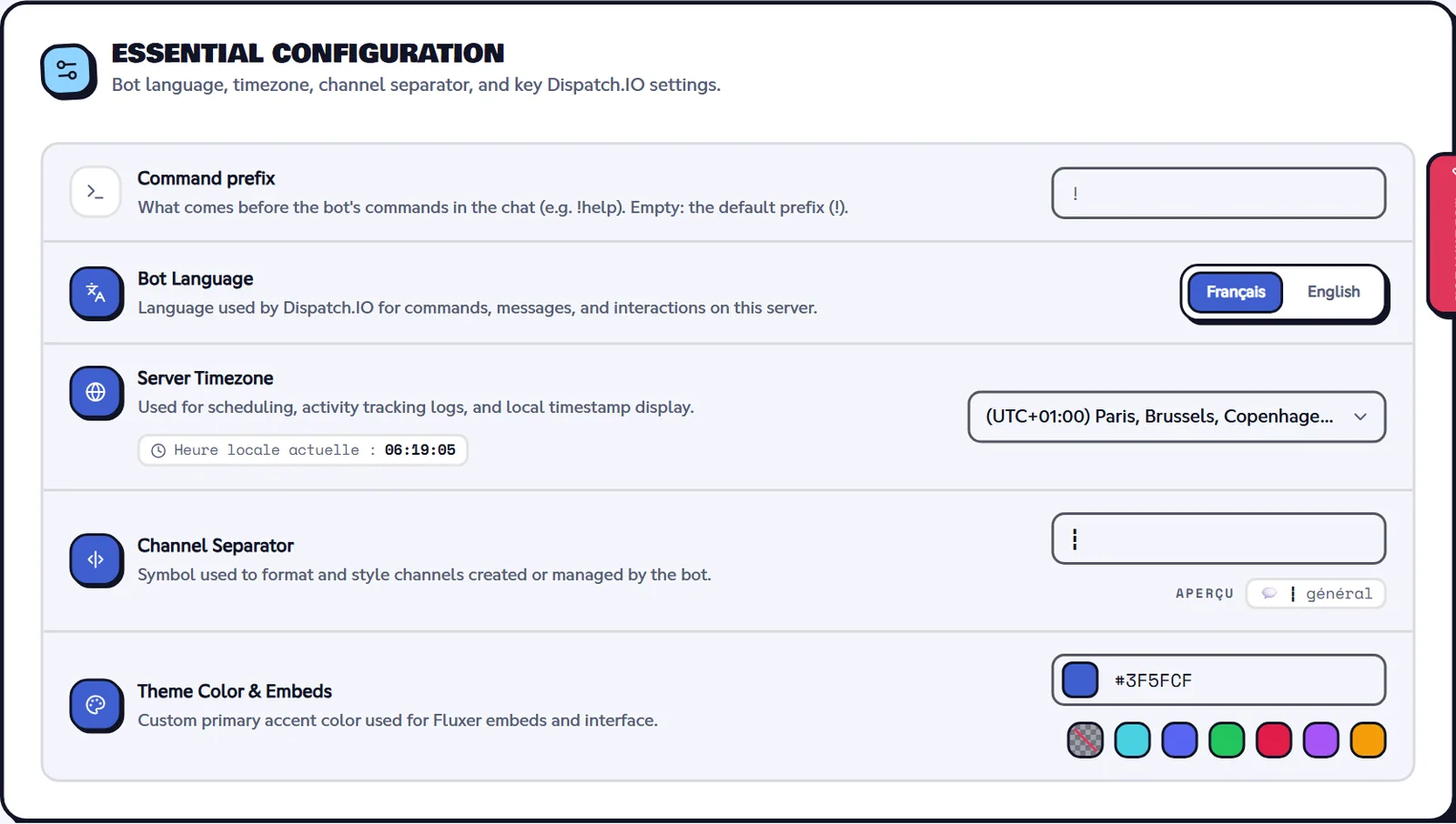
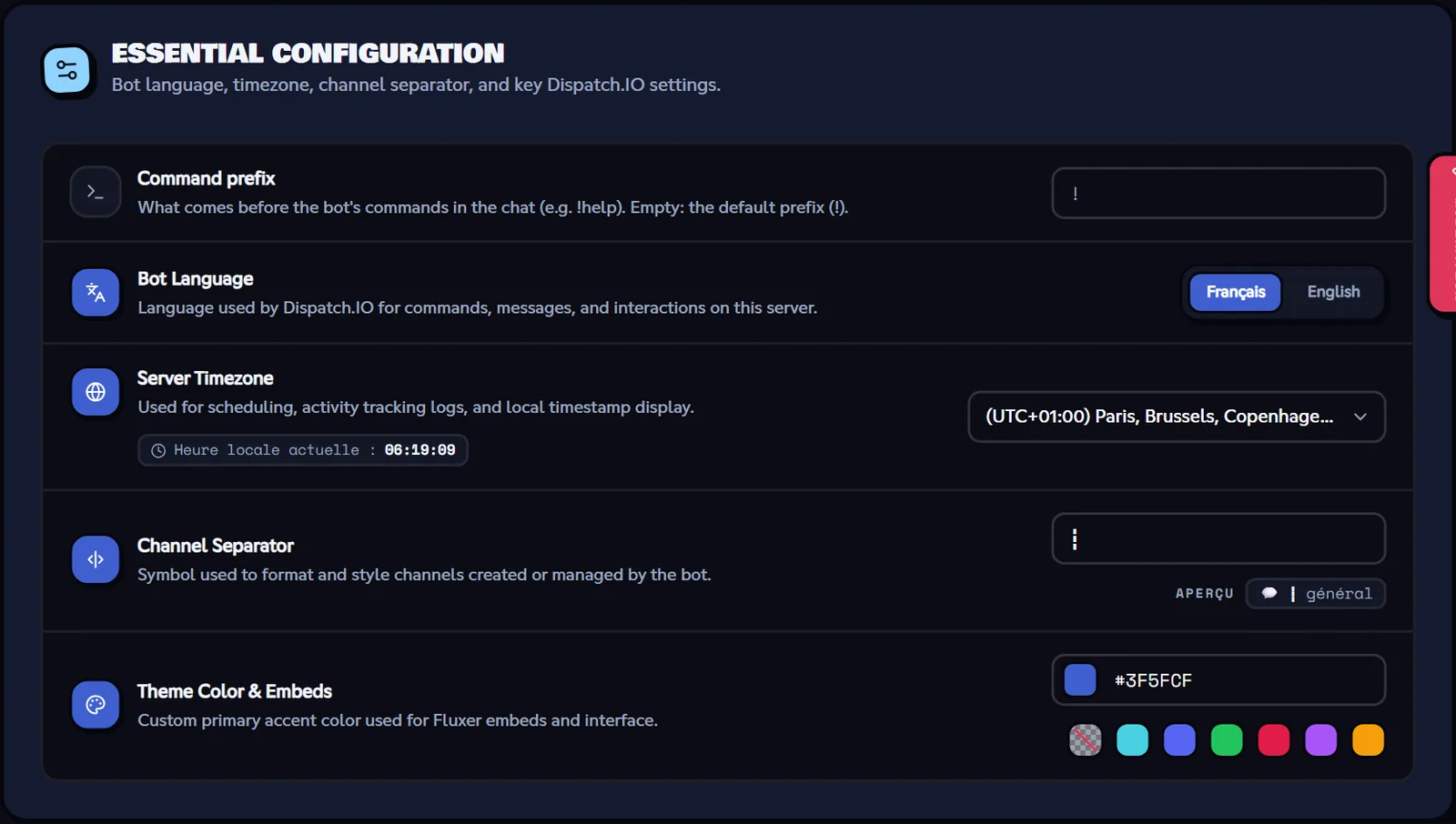
| Language, time zone, color, separator, emergency mentions | Basic configuration, see Community home |
| Bot channels (logs, captcha, bump, levels…) | Channels and Logs settings |
| Joins and departures | Welcome and goodbye |
| Reaction roles | Reaction roles |
| Automatic reactions to words | Word reactions |
| Anti-raid, captcha, whitelist, raid mode | Security and anti-raid |
| Tickets | Tickets |
| Temporary and temporary voice channels | Temporary channels |
| Bump | Bump |
| Levels | Levels |
| Flames | Flames |
| Achievements | Achievements |
| YouTube, Twitch, RSS | Social networks and RSS |
| Aviation command pack | Other commands |
The bot receives every change within seconds, without restarting, and posts a log in the Server logs channel: see Synchronisation with the bot.
The command prefix
Every command starts with the community's prefix. It is ! until you change it (Dispatch.IO's default prefix).
!prefixShows or changes the command prefix.
Syntax
!prefix [new prefix]Options
| Option | Type | Required | Description |
|---|---|---|---|
new prefix | Text | No | 1 to 5 characters, no space (`?`, `d!`, `>>`…). Without it, the bot shows the current prefix. |
Member permission
None to show the prefix; Manage community to change it
Where to use it
Community only
Rate limit
None
Plan
Free
Examples
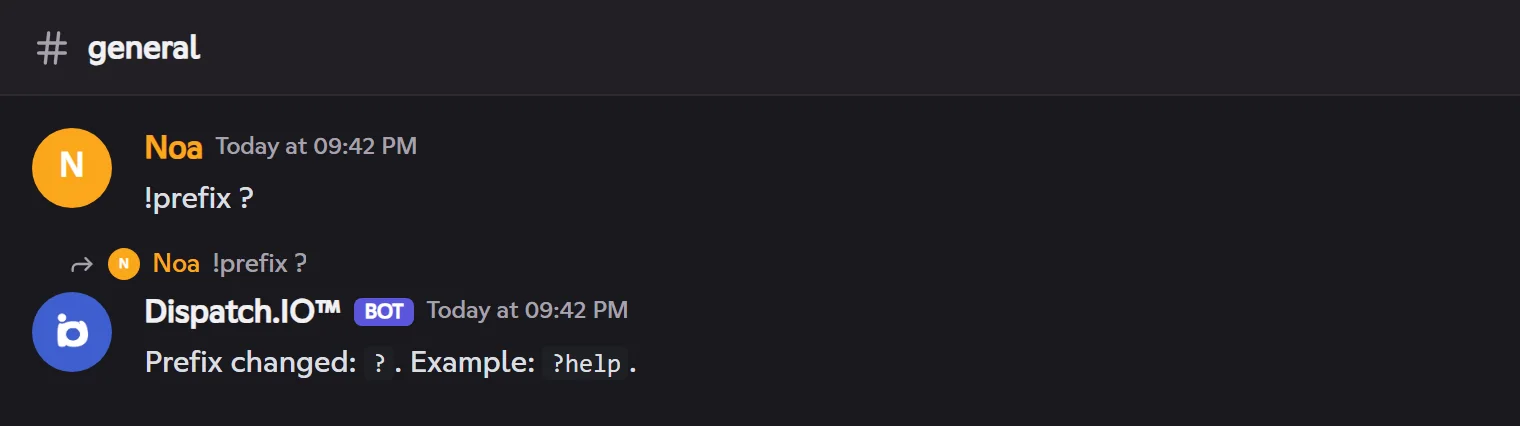
!prefix ?
Mentioning the bot always works, whatever the prefix: `@Dispatch.IO help`.
Result on Fluxer
- The prefix can also be set on the dashboard: Basic configuration → Command prefix (empty = the default prefix).
- Change the prefix if another bot of the community already uses
!. - Forgot the prefix? Mention the bot (
@Dispatch.IO): its introduction reminds you, or type@Dispatch.IO prefix.
Language and time zone
On the website: Basic configuration page, see Community home
| Option | Possible values | Default | Effect |
|---|---|---|---|
| Language | English or French | English | Language of every bot reply in the community: commands, announcements, logs, welcome and goodbye cards. |
| Time zone | About 130 time zones | Europe/Paris | Midnight used to count flames, times shown by the bot. |
Note
On Discord, command replies follow each member's app language. Fluxer does not give that information to bots: on Fluxer, everything follows the community language. In direct messages, outside a community, the bot answers in English.
Color and separator
On the website: Basic configuration page
| Option | Possible values | Default | Effect |
|---|---|---|---|
| App color | 6-character hexadecimal code (#48D1E1) | #48D1E1 | Color of the side bar of the bot's messages (bump, ticket panels, notifications…). |
| Channel name separator | One character | ┇ | Used in the names of the channels the bot offers to create (📂┇server). |
A member who picked a personal accent color on their website profile sees their own color on their cards.
Turning commands on or off
Every command answers as soon as the bot arrives, but those that depend on a module do nothing until it is on: they reply that the module is off.
| Commands | Usable when |
|---|---|
!rank, !top, !modify-xp, !reset-levels | The level system is on |
!streak | The flame system is on |
!zulu, !metar, !frequencies | The aviation pack is on (page Other commands) |
!bump | Bump is on and set up |
The Dispatch.IO team can also suspend a command for everyone (maintenance): it then replies "This command is disabled for now".
Summary table
Each setting with its default value in a new community.
| Module | Option | Default value |
|---|---|---|
| Basic configuration | Language | English |
| Basic configuration | Time zone | Europe/Paris |
| Basic configuration | App color | #48D1E1 |
| Basic configuration | Channel name separator | ┇ |
| Commands | Prefix | ! (Dispatch.IO's default prefix) |
| Welcome | Welcome roles | None |
| Welcome | Arrival / departure channel | None |
| Welcome | Custom message | None (bot's default text, no direct message) |
| Welcome | Image | Dispatch.IO's default image |
| Channels | Each channel type | No channel |
| Reaction roles | Panels | None |
| Other commands | Aviation commands | Off |
| Anti-raid | Main switch and each protection | Off |
| Anti-raid | Minimum account age (recent account) | 7 days |
| Anti-raid | Channels allowed for links, forbidden words | None |
| Whitelist | Members | The owner only (every protection) |
| Tickets | Ticket systems, saved transcripts channel | None |
| Word reactions | Words | None |
| Temporary channels | Channels, voice hubs | None |
| Bump | Bump system | Inactive |
| Levels | Level system | Inactive |
| Levels | Voice experience | 20 |
| Levels | Text experience min / max | 5 / 15 |
| Flames | Flame system | Inactive |
| Achievements | Achievements | As set on the dashboard |
| Social networks and RSS | Followed channels and feeds | None |
To go further: Permissions and roles, Premium plans and limits and Troubleshooting.