
These commands let administrators maintain the community: clean up a channel, lock a channel during an incident, block joins during a raid, give a role to everyone or manage emojis. Sensitive commands ask for a confirmation: the bot adds ✅ and ❌ under its question, and only the command's author can answer, within 30 seconds.
| Command | What it is for | Fluxer permission required |
|---|---|---|
!config | Link to the community's dashboard | Administrator |
!clear | Delete messages | Administrator |
!nuke | Recreate a channel from scratch | Administrator |
!toggle-lock | Lock or unlock a channel | Manage channels |
!raid-mode | Block new joins | Administrator |
!role-all | Give a role to every member | Administrator |
!emoji | Add, remove or show an emoji | Manage emoji & stickers |
Opening the dashboard
!configShows the community's language, time zone and support, with the direct link to its page on the dashboard.
Syntax
!configMember permission
Administrator
Where to use it
Community only
Rate limit
None
Plan
Free
Examples
!config
Aliases: `!dashboard`, `!settings`. On Discord, `/config` opens a settings panel; on Fluxer, every setting is on the dashboard.
Deleting messages
!clearDeletes messages: a given number, a member's, or a conversation between two messages.
Syntax
!clear <1-100> | !clear user <@member> | !clear conversation <first id> <last id>Options
| Option | Type | Required | Description |
|---|---|---|---|
1-100 | Number | No | Deletes the channel's last N messages (before your command). |
user <@member> | Subcommand | No | Deletes this member's recent messages in every channel the bot reads. |
conversation <first id> <last id> | Subcommand | No | Deletes the messages between those two messages (included), in this channel. |
Member permission
Administrator
Bot permission
Manage messages
Where to use it
Community only
Rate limit
2 uses every 30 s
Plan
Free
Examples
!clear 20!clear user @Alex!clear conversation 100000000000007001 100000000000007042
Alias: `!purge`. The confirmation shows for 5 seconds; a log with a text copy of the deleted messages is posted in the Messages log category.
Recreating a channel
!nukeDeletes a channel and recreates it identically (name, category, position, topic, permissions), without its messages.
Syntax
!nuke [#channel]Options
| Option | Type | Required | Description |
|---|---|---|---|
channel | Channel | No | The channel to recreate (this one by default). |
Member permission
Administrator
Bot permission
Manage channels
Where to use it
Community only
Rate limit
2 uses every 30 s
Plan
Free
Examples
!nuke #general
Confirm with ✅ within 30 seconds. Bot settings that pointed to the old channel (logs, welcome…) must be redone on the dashboard: the new channel has another ID.
Locking a channel
!toggle-lockLocks or unlocks a channel for the welcome roles: they can no longer write in it, then can again.
Syntax
!toggle-lock [#channel]Options
| Option | Type | Required | Description |
|---|---|---|---|
channel | Channel | No | The channel to (un)lock (this one by default). |
Member permission
Manage channels
Bot permission
Manage channels, Manage roles
Where to use it
Community only
Rate limit
1 use every 30 s
Plan
Free
Examples
!toggle-lock #general
Aliases: `!lock`, `!unlock`. Welcome roles must be set on the dashboard. A locked channel has 🔒 at the start of its topic.
Blocking joins (raid mode)
!raid-modeTurns raid mode on or off: while it is on, every newcomer is kicked automatically.
Syntax
!raid-modeMember permission
Administrator
Where to use it
Community only
Rate limit
1 use every 20 s
Plan
Free
Examples
!raid-mode
Raid mode turns itself off after its maximum duration. It can also be set on the dashboard's Security and anti-raid page.
Result on Fluxer
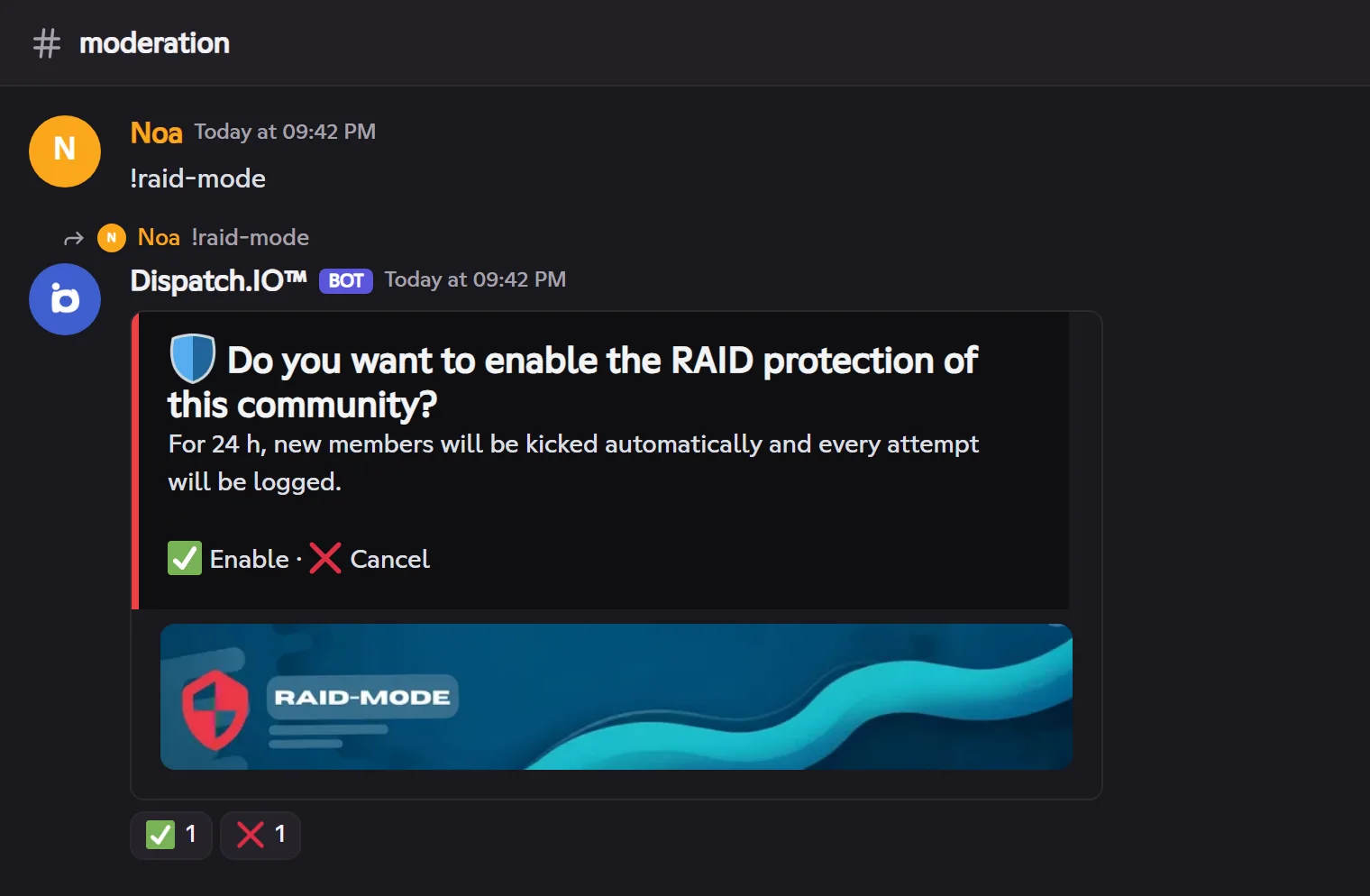
The change is logged in the Anti-raid log channel (source: command). More in Anti-raid and security.
Giving a role to everyone
!role-allGives a role to every member, to humans only or to bots only.
Syntax
!role-all <@role>Options
| Option | Type | Required | Description |
|---|---|---|---|
role | Role | Yes | The role to give. It must be below the bot's role and not be a dangerous role. |
Member permission
Administrator
Bot permission
Manage roles
Where to use it
Community only
Rate limit
1 use every 60 s
Plan
Free
Examples
!role-all @Members
- The bot asks who should get the role: 👥 Humans, 🤖 Bots, ♾️ Everyone (or ❌ to cancel).
- It then asks you to confirm with ✅.
- It gives the role member by member, shows the progress in its message, then the result. A log is posted.
Managing emojis
!emojiAdds an emoji to the community, removes one, or shows an emoji's image.
Syntax
!emoji add <name> <emoji | attached image> | !emoji remove <emoji | name> | !emoji image <emoji>Options
| Option | Type | Required | Description |
|---|---|---|---|
add <name> | Subcommand | No | Name of 2 to 32 characters (letters, digits, `_`). The image comes from a custom emoji, a standard emoji or an attached image (512 KB at most). |
remove | Subcommand | No | The emoji to remove (the emoji itself or its name). |
image | Subcommand | No | Shows a custom emoji's image in large. |
Member permission
Manage emoji & stickers
Bot permission
Create emoji & stickers, Manage emoji & stickers
Where to use it
Community only
Rate limit
3 uses every 60 s
Plan
Free
Examples
!emoji add parrot (with parrot.gif attached)!emoji remove :parrot:
Adding and removing ask for a ✅ confirmation. An addition is logged in the Server logs channel.