
Dispatch.IO manages two kinds of temporary channels: text channels whose messages disappear after a delay, and voice channels created for each member who joins a "hub" channel. Settings are made on the dashboard's Temporary channels page.
Overview
| Temporary text channels | Temporary voice channels | |
|---|---|---|
| Principle | A text channel's messages are deleted after a delay | Joining a voice hub creates a personal voice channel |
| What you set up | The channel, the delay, keeping pinned messages | The voice hub, the allowed roles, the name prefix |
| Limit | None | 3 hubs on Free, 5 on Basic, unlimited on Ultimate |
Temporary text channels
In a temporary text channel, each new message is deleted after the chosen delay (from 10 seconds to 2 hours, 1 minute by default): members', other bots' and Dispatch.IO's own messages. Handy for a bot command channel or a "flood" channel.
- With Keep pinned messages, a message pinned before the delay ends is kept.
- Only new messages are concerned. The bot needs Manage messages in the channel.
- Messages sent while the bot is offline are not deleted.
Temporary voice channels
A voice hub (for example ➕ Create a channel) is an entrance: each member who joins it gets their own voice channel.
- The name:
🔊 <prefix> <nickname>(🔊 Voice of Alex), prefix adjustable on the website. - Who can connect: the owner, the hub's allowed roles, the ADMIN and MODO staff roles, and members added with the panel.
@everyonecan't connect. - The channel is created in the same category as the hub, with its member limit.
- The bot needs Manage channels, Manage roles and Move members.
Without an allowed role, the channel is private
If you pick no allowed role, only the owner, the staff and added members can connect. For a channel open to all, add a role every member has, for example @Members.
The control panel
As soon as the channel is created, the bot posts a panel in the voice channel's chat: creator, owner, state (locked or not), then the legend of its eight "buttons" and the matching reactions.
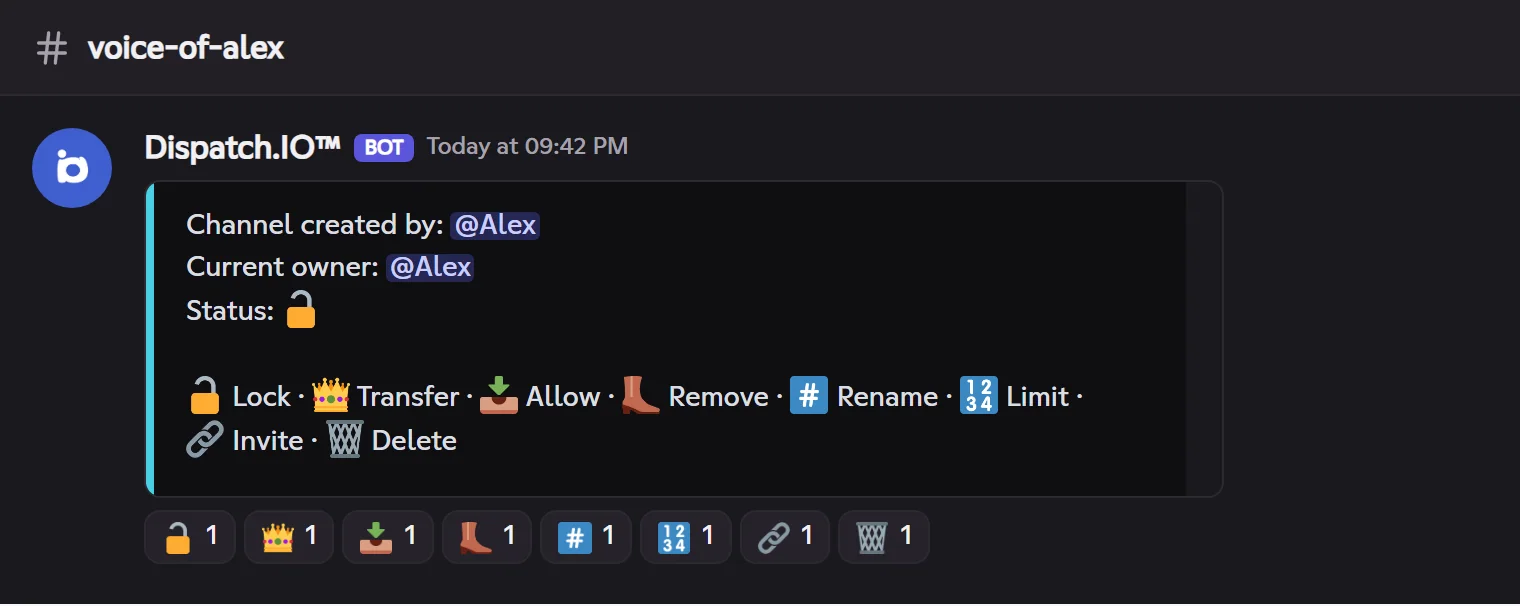
| Reaction | Effect |
|---|---|
| 🔓 Lock | Locks or unlocks the channel: allowed roles can no longer (or can again) connect. |
| 👑 Transfer | Gives ownership to a member present in the channel. |
| 📥 Allow | Adds a member: they can connect even if the channel is private or locked. |
| 👢 Remove | Removes a member's access. |
| #️⃣ Rename | Renames the channel. |
| 🔢 Limit | Sets a member limit (0 = no limit). |
| 🔗 Invite | Sends the member a direct message with the channel's link. |
| 🗑️ Delete | Deletes the channel right away. |
Answering in the chat. To rename, set the limit or pick a member (transfer, allow, remove, invite), the bot asks you to write the answer in the channel's chat within 30 seconds: the new name, a number from 0 to 99, or the member's mention. Your answer is deleted once read. On Discord, picking a member is done in a menu.
Who can use the panel: the owner (connected to the channel) and administrators. Other members' reactions are removed.
Owner and closing
- Owner left: the first member still present becomes owner, and the channel is renamed after them.
- Empty channel: deleted 5 seconds later (kept if someone comes back meanwhile).
- After a bot restart: it deletes empty channels, changes owner if needed and reposts the panels.
- Deleting a voice hub is refused while channels it created still exist.
Limits by plan
| Limit | Free | Basic | Ultimate |
|---|---|---|---|
| Voice hubs | 3 | 5 | Unlimited |
| Temporary text channels | Unlimited | Unlimited | Unlimited |
If the plan goes down, only the oldest hubs, within the plan's limit, work.
Pitfalls and limits
- Locking has no effect if the hub has no allowed role: the channel is already private.
- Removing a member doesn't disconnect them: they simply can't come back.
- Renaming only lasts until the next owner change.
- The bot must be able to move the member into their new channel: check Move members for its role.