
The welcome module greets each new member in a channel of your choice with a message and an illustrated card, can send them that message privately and automatically gives them welcome roles. Its twin, the goodbye message, announces departures in another channel.
This page explains what the bot does, in which order and with which rules. Settings are made on the dashboard's Welcome and goodbye page.
In two minutes
Pick an arrival text channel, add a welcome role (for example @Members), save, then click Test the welcome on the website: you see right away what your new members will get.
What happens when a member joins
The steps, in the exact order the bot runs them.
As soon as a member joins the community, the bot goes through these steps:
- It posts the join and invite logs, if those log channels are set (see Logs).
- It runs the member through the anti-raid protections (bot added, mass joins, too recent account). If one of them kicks the member, everything stops there.
- If the captcha is on, it waits for the member to type the code (up to 3 minutes). On failure, the member is kicked and everything stops.
- It sends the welcome message in the arrival channel (and by direct message if you wrote a custom message).
- It gives the welcome roles.
The welcome message
The default text, the card and the channel it is posted in.
The message is posted in the arrival channel (Arrival announcement channel on the website), in the community language. Without a channel, no message is posted, but welcome roles are still given.
Until you write a custom message, the bot uses its default text: the title "New member!", then "Welcome to community name !" with the member's display name and the total number of members. Below, the welcome card.
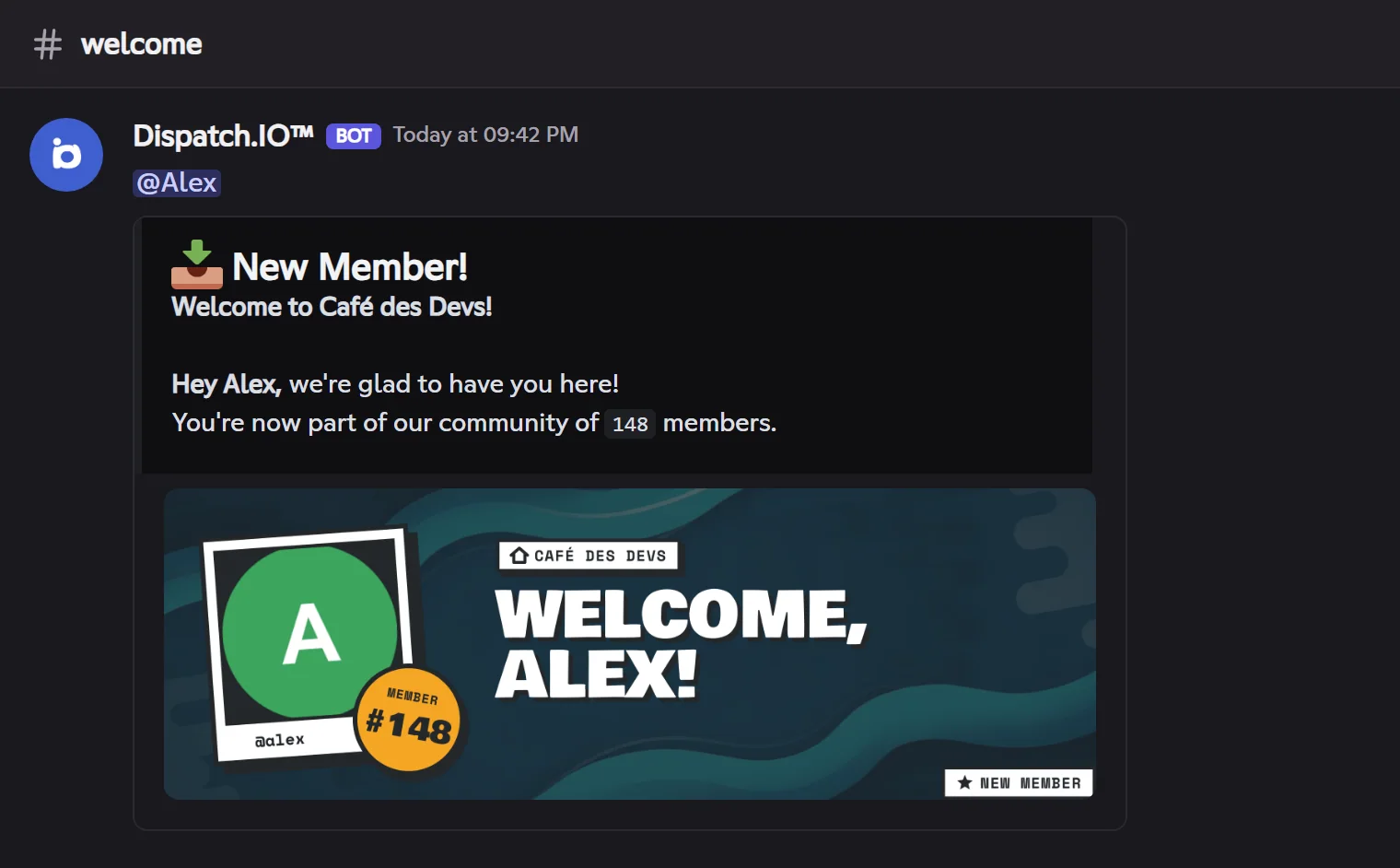
The avatar thumbnail
On Discord, the member's avatar also shows as a thumbnail next to the text. Fluxer hides the thumbnail of an embed that already has an image: on Fluxer, only the card shows, and it already contains the avatar.
Important
The arrival channel must be a text channel where the bot has View channel, Send messages, Embed links and Attach files (the card is an attached image).
Customizing the message and its variables
Your own text, its variables, and the direct message sent to the member.
The custom message (Custom welcome message on the website) replaces the default title and text; the card stays. It accepts 2000 characters and Markdown formatting (### for a heading, **bold**, -# for small text…).
| Variable | Replaced by | Example |
|---|---|---|
{user} | The member's mention | @Alex |
{userName} | Their Fluxer username | alex |
{guildName} | The community's name | Café des Devs |
{guildMemberCount} | The total number of members, bots included | 148 |
### Welcome {user} to **{guildName}**! ☕
You are our **{guildMemberCount}th** member, settle in and introduce yourself!
- An unknown variable stays as is.
{memberCount}only exists in the default text: use{guildMemberCount}. - On Fluxer, a mention placed in the bot's message (an embed) shows but does not notify the member.
The direct message. With a custom message, the bot also sends the message to the new member by direct message: the same text and the card, followed by a "Sent by community name" link that opens the arrival channel. If their direct messages are closed, sending silently fails. With the default text, no direct message is sent.
Welcome roles
The roles given automatically after the welcome.
Welcome roles are added to the member right after the welcome message. For a role to be given:
- the bot must have the Manage roles permission;
- the role must be below the bot's highest role (at an equal position, the older one wins) and not managed by an integration;
- the role must still exist: a deleted role is simply ignored.
A "verified" role
Welcome roles are only given after the anti-raid and the captcha. You can use one as an access role: make your channels visible only to @Members, and only members who passed the checks will see them.
The same roles are used by !toggle-lock: they are the ones that lose the right to write in a locked channel.
With the anti-raid captcha
When the welcome waits for the member's verification.
The captcha is part of the anti-raid. It is on when the anti-raid is on, the captcha protection is on and a captcha text channel is chosen (page Security and anti-raid).
- The bot posts in the captcha channel an image with a 6-character code and mentions the new member.
- The member types the code in the channel before the delay ends (3 minutes by default); their answers are deleted as they come and the bot shows the attempts left.
- On success, the bot sends the welcome message then gives the roles.
- On failure or timeout, they get a direct message and are kicked.
During that time, the member has no welcome role yet: the captcha channel must therefore be visible to @everyone.
The goodbye message
Announcing departures in the channel of your choice.
When a member leaves the community (on their own, kicked or banned), the bot posts a goodbye message in the departure channel (Departure announcement channel on the website), which can be the same as the arrival channel.
- Without a departure channel, nothing is posted. No direct message is sent.
- The default text shows the title "A member is leaving us", the member's name, a thank-you and the number of remaining members, with the goodbye card.
- The custom goodbye message accepts the same variables;
{guildMemberCount}gives the number of remaining members. Prefer{userName}to{user}: the member is gone.
Welcome and goodbye cards
What is drawn on the image and where the background comes from.
Each message comes with a 1200 × 400 pixel image generated by the bot, in the community language: the community's name, "WELCOME, ALEX!" or "GOODBYE, ALEX!", the member's avatar and name on a polaroid, and a badge with the member's number (or the number of remaining members).
The welcome card's background is, in order: the member's personal background (Individual plan), the community's welcome image, otherwise Dispatch.IO's default image. For the goodbye: the community's goodbye image, otherwise the default image. The dark veil (on by default) keeps the text readable.
Settings and default values
| Setting | Default | Effect |
|---|---|---|
| Arrival announcement channel | None | Channel of the welcome message. No channel: no message. |
| Welcome roles | None | Roles given on each arrival. |
| Custom welcome message | Empty (default text) | Replaces the default text and turns on the direct message. |
| Welcome image, dark veil | Default image, veil on | Background of the welcome card. |
| Departure announcement channel | None | Channel of the goodbye message. |
| Custom goodbye message | Empty (default text) | Replaces the goodbye text. |
| Goodbye image, dark veil | Default image, veil on | Background of the goodbye card. |
Testing. On the website, Test the welcome and Test the goodbye make the bot send the real message, as if you had just joined or left (after saving a channel; no role is given during a test).
Common problems
| Problem | Likely cause and fix |
|---|---|
| No message on arrival | No arrival channel, or the bot lacks permissions in the channel (View channel, Send messages, Embed links, Attach files). |
| Roles are not given | Role above the bot's role, Manage roles missing, or member blocked by the anti-raid or the captcha. |
| The message comes several minutes after the arrival | The captcha is on: the welcome waits for the member to type the code. |
The member wasn't notified by {user} | On Fluxer, mentions in the bot's messages (embeds) don't notify. |
{memberCount} shows as is | In a custom message, use {guildMemberCount}. |
| A goodbye message for an account that never really arrived | Anti-raid and captcha kicks are departures too. |