
Tickets let a member open a private channel with your team: a help request, a report, an application… The bot posts a panel, creates the ticket's channel, manages who can read and write in it, and keeps a transcript viewable on the website. Systems are created on the dashboard's Tickets page.
On Fluxer, the panel's button and menu are reactions, and the "Why are you opening a ticket?" window is a website form sent by direct message.
Key concepts
| Concept | What it is |
|---|---|
| Ticket system | A panel posted in a channel, with its settings. Two formats: button (one ticket type) and menu (several types). |
| Option | A ticket type: its name, the channel prefix, the welcome message, an image and the notified roles. |
| Mentioned roles | Your team's roles tied to an option. They are mentioned on opening and can read the ticket. |
| Ticket | A private text channel created in the system's category, named prefix-name (support-alex). |
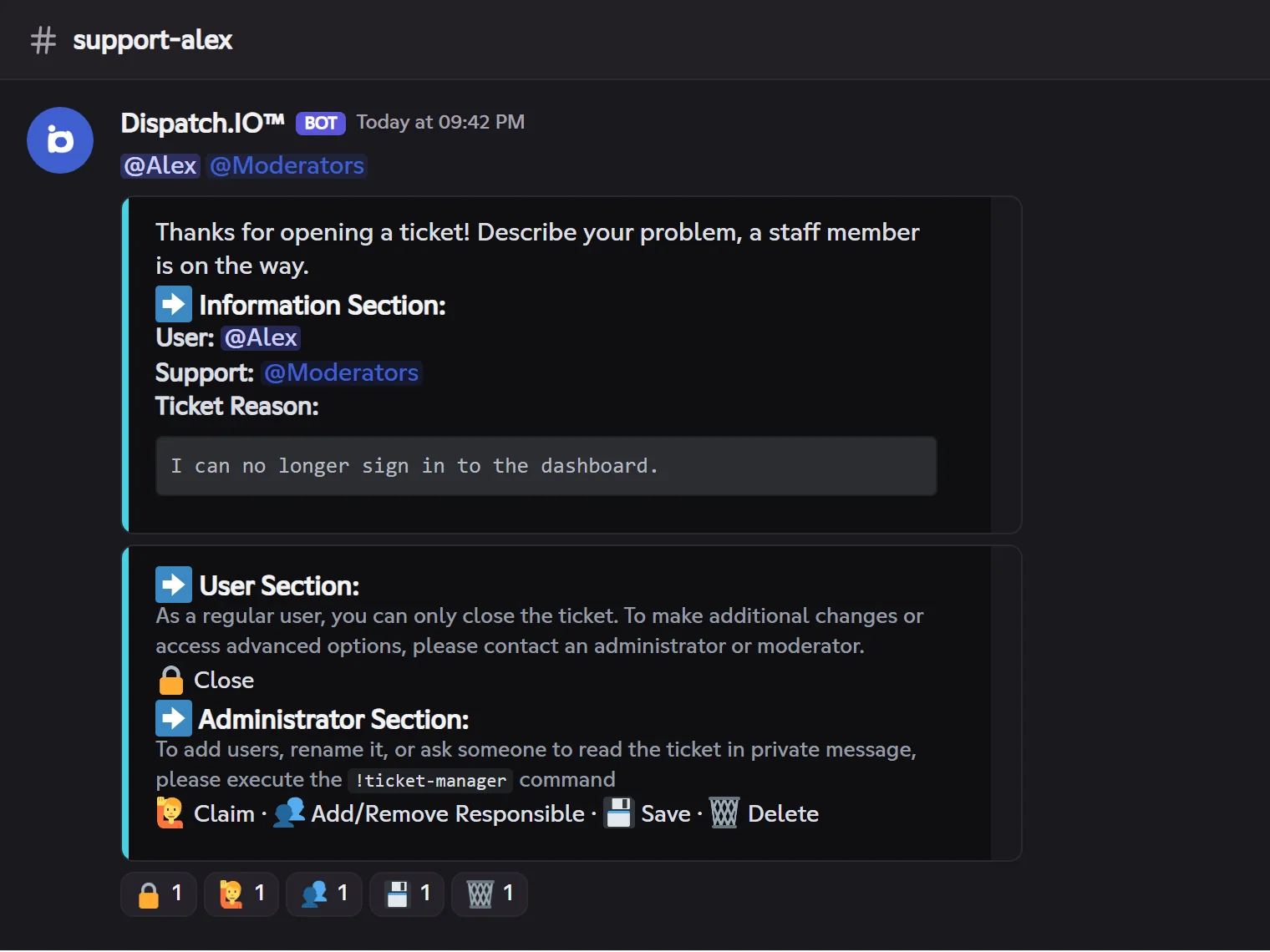
| Responsible | A team member who took the ticket (🙋) or was added as responsible (👥). |
| Archive channel | The channel that gets a notice each time a ticket is saved. |
Creating a ticket system
On the website, Button system and Menu system open a multi-step editor: format, panel channel and ticket category, panel description and image, options (name, prefix, welcome message, mentioned roles), then Save & publish. The bot posts (or updates) the panel within seconds. You can also pause a system, repost its panel or delete it.
Bot permissions
The bot creates channels, sets their permissions and reads their history: it needs Manage channels, Manage roles and Read message history (which Administrator covers).
The posted panel
What members see in the panel's channel.
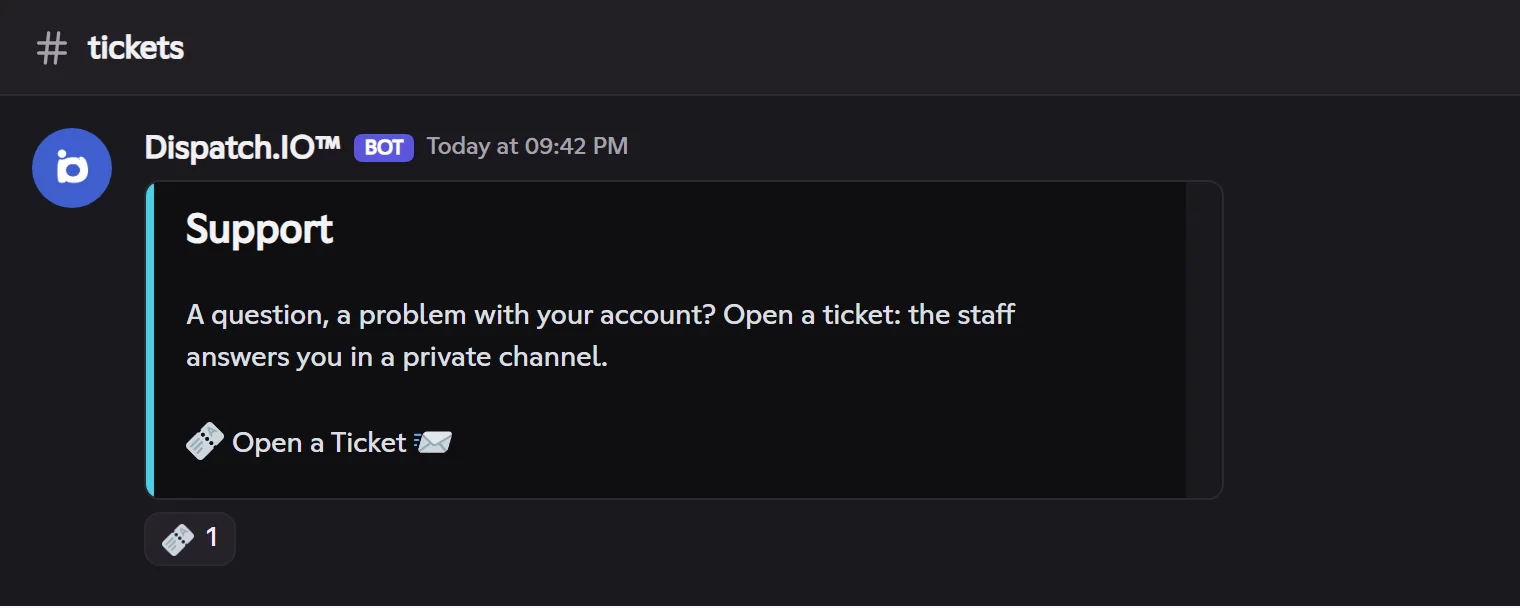
- Button system: the image, the option's name, your description, then the legend "🎫 Open a ticket" and the 🎫 reaction.
- Menu system: the image, your description, then the numbered list of options (1️⃣ Partnership, 2️⃣ Report a member…) with one reaction per option.
10 options at most per panel on Fluxer
A menu's options are reactions numbered 1️⃣ to 🔟: a panel shows its first 10 options. On Discord, a menu can have 25.
When a system is paused (or its category deleted), the reactions are not added.
Opening a ticket
From the panel click to the private channel.
- The member clicks 🎫 (or their option's number). Their reaction is removed.
- If they already have an open ticket in the community, the bot refuses (administrators are not concerned).
- The bot sends them by direct message the link to a website form: "Why are you opening a ticket?" (300 characters at most, valid for 15 minutes).
- On submit, the bot creates the ticket's channel in the system's category, named
prefix-namein lowercase, and the form page shows the channel's link. - It posts the opening message, which mentions the member and the notified roles: the option's welcome message, author, support and reason, then the ticket's panel with its reactions.
If the author is part of the Dispatch.IO team, a box says so, to prevent impersonation. A blacklisted account can't open a ticket.
Who sees and writes in a ticket
| Who | Open ticket | Closed ticket |
|---|---|---|
| @everyone | Doesn't see the channel | Doesn't see the channel |
| The ticket's author | Sees and writes | No access anymore |
| The option's mentioned roles | See and read the history, without writing | Same |
| Administrators | See and write | See and write |
| A responsible | Sees and writes | Sees, can no longer write (unless administrator) |
A member or role added with !ticket-manager | Sees and writes | Same |
Tip
Mentioned roles can read the ticket but not answer it: a moderator clicks 🙋 Claim to be able to write. This way, each ticket has an identified responsible.
The ticket's reactions
Who can use which reaction.
| Reaction | Who can use it | Effect |
|---|---|---|
| 🔒 Close | Anyone who sees the ticket, the author included | Closes the ticket. |
| 🙋 Claim | An administrator or a member with one of the mentioned roles | Takes the ticket and gives the right to write. On the first claim, the author gets a direct message. |
| 👥 Responsible | An administrator | The bot asks you to mention a member in the channel (30 seconds): they become responsible, or stop being so. |
| 💾 Save | An administrator or a responsible | Saves the transcript. |
| 🗑️ Delete | An administrator | Deletes the channel after 5 seconds. |
| 🔓 Reopen (after closing) | Anyone who still sees the ticket | Reopens the ticket. |
The bot removes your reaction after each action; a refusal is explained to you by direct message (or for 5 seconds in the channel). To add members, rename the ticket or invite someone, use !ticket-manager (see Community).
Closing, reopening and deleting
- Close (🔒) acts right away: the author loses access, non-administrator responsibles can no longer write, and the bot posts "Ticket closed" with 🔓 Reopen, 💾 Save and 🗑️ Delete. Nothing is saved automatically.
- Reopen (🔓) gives access back to the author and the right to write to the responsibles.
- Delete (🗑️, administrators) deletes the channel after 5 seconds, without automatic saving: save first if you want to keep the conversation.
Caution
Always delete a ticket with 🗑️ (or close it first). If you delete the channel by hand, the ticket stays "open" for the bot and its author can no longer open another one.
Saving the transcript
💾 Save stores the whole conversation (messages, attachments, authors) in a transcript viewable on the website, in the same format as on Discord. The bot posts a notice in the archive channel (if set), with the View the ticket on the dashboard link. The transcript stays available after the channel is deleted.
Handling tickets from the website
The dashboard's Ticket handling page lists the tickets (open, closed, archived). By opening an active ticket, your team can, without opening Fluxer: read the conversation live and reply (the message is posted by the bot), claim, close, reopen, rename and save the ticket, manage responsibles and sanction the author.
Limits and Premium plans
| Limit | Free | Basic | Ultimate |
|---|---|---|---|
| Button systems | 2 | 5 | Unlimited |
| Menu systems | 2 | 5 | Unlimited |
| Item | Limit |
|---|---|
| Options shown per panel (Fluxer) | 10 |
| Mentioned roles per option | 10 |
| Reason typed on opening | 300 characters |
| Open tickets per member | 1 in the whole community (except administrators) |
Common problems
| Problem | Likely cause and fix |
|---|---|
| Nothing happens when clicking 🎫 | The system is paused, or your DMs are closed and the link was posted 15 seconds in the channel. Open your DMs and click again. |
| "Link expired" on the form | The form is only valid for 15 minutes: click 🎫 again. |
| An option doesn't show | The panel only shows its first 10 options on Fluxer. |
| The ticket's channel isn't created | The bot lacks Manage channels / Manage roles, or the category is full. |
| A member can no longer open a ticket | Their old ticket was deleted by hand: close it from the website. |