
The Channels page gathers the 11 channels Dispatch.IO may need: the arrivals channel, the level-up channel, the saved tickets channel… Log channels are set on the Logs settings page. For each one, you either pick an existing channel of your server or have the bot create it automatically, with the right permissions.
It is meant for administrators setting up the bot or reorganising their channels. Open it from the Configuration > Channels menu or the Channels tile of the server home.
Page overview
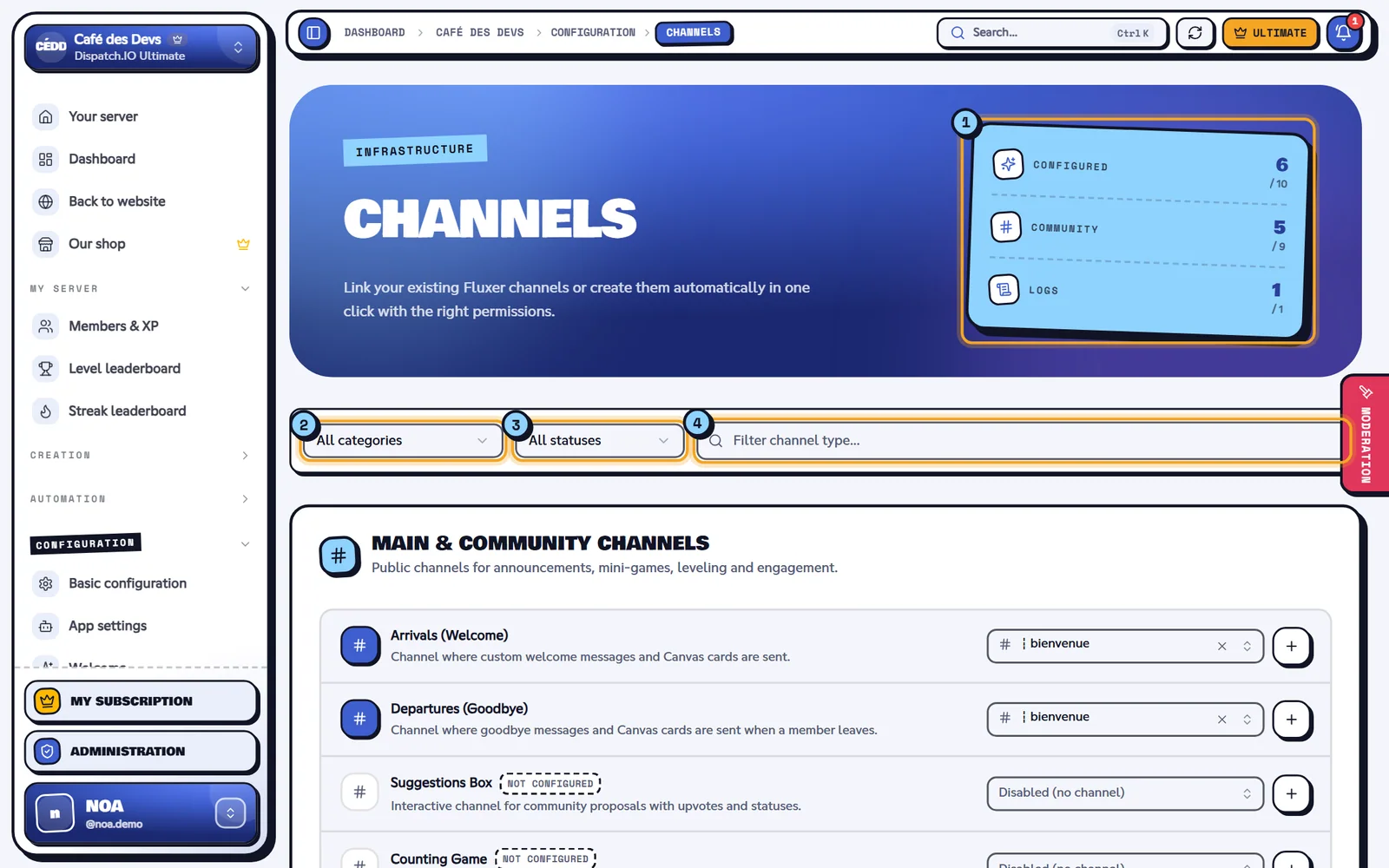
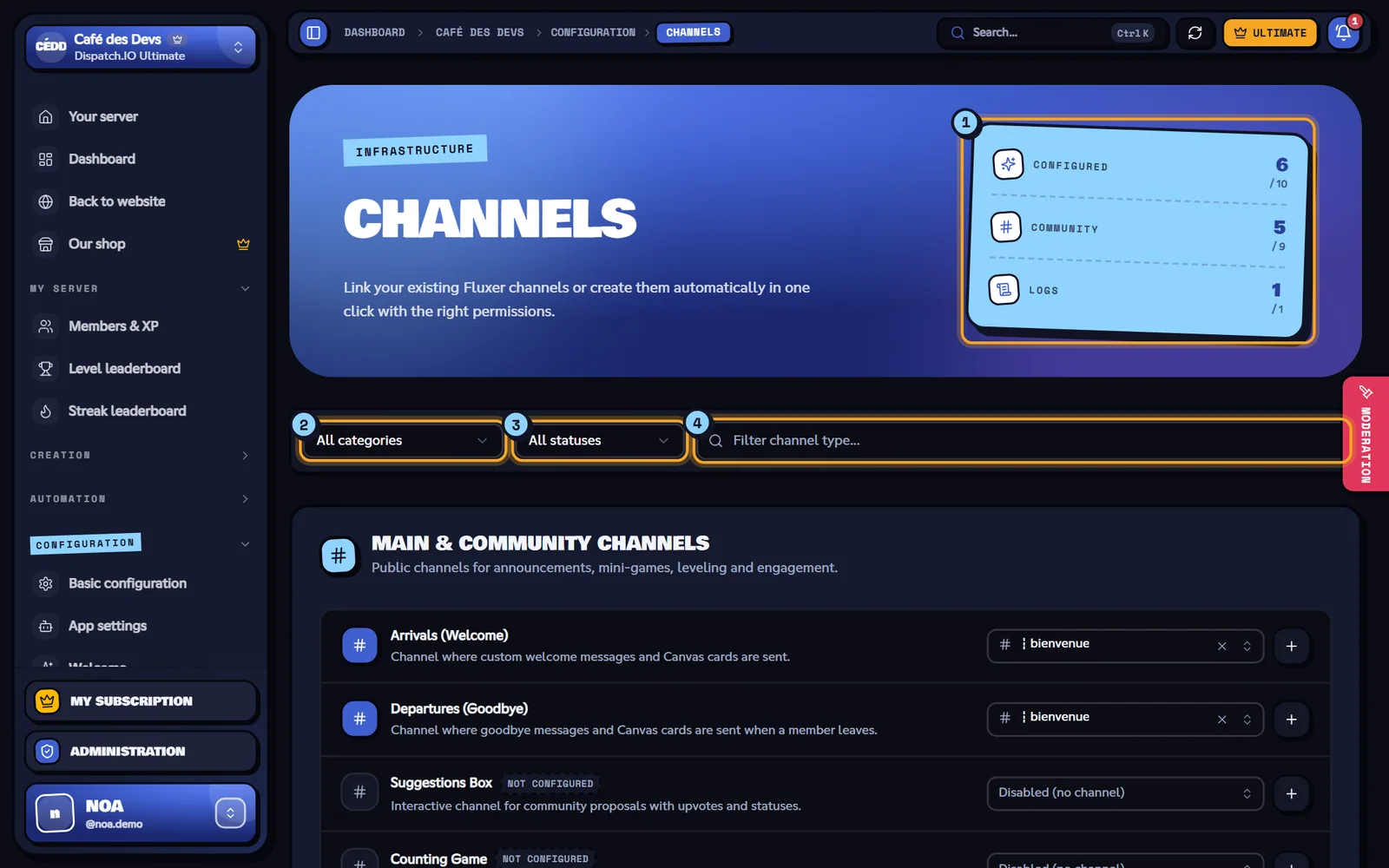
- Indicators: Configured (channels set, out of 11), Community (out of 10) and Logs (out of 1: the saved tickets).
- Category filter: All categories, Main & Community Channels or Private staff channels.
- Status filter: All statuses, Configured or Not configured.
- Search: "Filter channel type..." searches the name and description of each type.
The number of results is shown next to the filters, and Reset clears them. If nothing matches: "No channel types match your filters."
Channels are split into two parts:
- Main & Community Channels: public channels for announcements, events and mini-games.
- Private staff channels: the saved tickets channel, tagged Private channel (staff). The Logs settings button of this part opens the log channels page.
A type without a channel has the orange Not configured badge.
Linking an existing channel
- Find the row of the channel type (for instance Level-Up Announcements).
- Open the list on the right and pick a channel. You can type a few letters in "Search a channel...".
- To stop using a channel for this type, pick Disabled (no channel).
- Click Save changes in the bar that appears at the bottom.
The list offers the text and announcement channels of your server. A channel you just created on Fluxer shows up after you click Sync Fluxer Data in the site header.
Warning
For arrivals and departures, pick a regular text channel. Announcement channels are offered in the list, but the bot doesn't post welcome and goodbye messages there.
Creating a channel in one click
The + button (Create automatically) at the end of each row creates the channel right away on Fluxer and links it to the type, without going through Save.
- The Not configured badge.
- The channel list.
- The + button that creates the channel.
What the bot creates:
- a text channel named with the server's channel separator followed by a fixed name, for instance
┇logs-messages(the separator is set in Basic configuration). Names are in French whatever the server language; - the channel topic: "Salon automatique géré par Dispatch.IO™" followed by the type in brackets (for instance
(LOGS_MESSAGE)); - for ticket transcripts and Dispatch patch notes: a private channel that only the bot can see. Then give your team access in the channel permissions on Fluxer;
- for the suggestions box: a 60-second slow mode.
The message "Channel #… was successfully created and assigned!" confirms the creation. The save bar then shows up, but the channel is already saved: saving changes nothing more.
Note
The bot needs the Manage Channels permission on the server. Otherwise: "Error while automatically creating channel."
Main and community channels
| Type (name on the page) | What it's for | Name created by + | Also set on |
|---|---|---|---|
| Arrivals (Welcome) | Welcome message and card for new members | bienvenue | Welcome and goodbye |
| Departures (Goodbye) | Goodbye message and card | au-revoir | Welcome and goodbye |
| Suggestions Box | Messages posted there become suggestions with votes | suggestions | Polls, giveaways and suggestions |
| Counting Game | Mini-game: members count together, one number per message, never twice in a row; a mistake resets the count to 1 | comptage | — |
| Bump Reminders | Despite its name, this is the channel where other servers' bumps arrive (same setting as Bump receive channel) | bumps | Bump |
| Level-Up Announcements | Level-up announcements | niveaux | Levels |
| Flames | Daily flame announcements | flammes | Flames |
| Dispatch.IO™ Patch Notes | Receives Dispatch.IO update announcements | dispatch-updates (private) | — |
| Captcha Verification | Channel where new members take the captcha | verification | Security and anti-raid |
Private channels and log channels
| Type (name on the page) | What gets posted | Name created by + |
|---|---|---|
| Ticket Transcripts & Archives | Saved ticket transcripts (same setting as Archive channel on the Tickets page) | archives-tickets (private) |
Log channels are no longer on this page: open Logs settings (Configuration menu, right under Channels). There you pick the channel of each category, switch each log on or off, and can ignore bots, channels or roles. What each log contains is detailed in Logs.
Saving and checking
Click Save changes in the bottom bar. The message "Channels configuration successfully saved!" confirms it. The bot uses the new channels immediately and posts one line per changed channel in General Server Logs.
The same settings can be changed from other pages: the welcome channel on the Welcome page, the receive channel on the Bump page, the archive channel on the Tickets page, and so on. A change made there shows up here when you reload the page, and the other way around.
| Message | Cause |
|---|---|
| "Error while saving channels configuration." | Saving failed: try again. |
| "Error while automatically creating channel." | The bot couldn't create the channel (usually the Manage Channels permission). |
| "Channels configuration updated by …" | Another administrator just saved: the page shows their changes. |
Related pages
- Server home: channel separator and emergency mentions.
- Logs settings: channels, switches and filters of the logs.
- Logs: what each log channel contains.
- Logs: the history of changes on the website.
- Bot configuration: every bot setting, and the command prefix.