
A role panel is a Fluxer message with buttons or reactions: by clicking, your members give themselves roles (notifications, games, interests…) or get a private reply. The Role Reactions page lists your panels and offers a four-step wizard to create them.
It is meant for administrators. What members see and do on Fluxer is described in the Reactions and triggers module.
The panel list
Open Configuration > Role Reactions in the menu or the Role reactions tile of the server home.
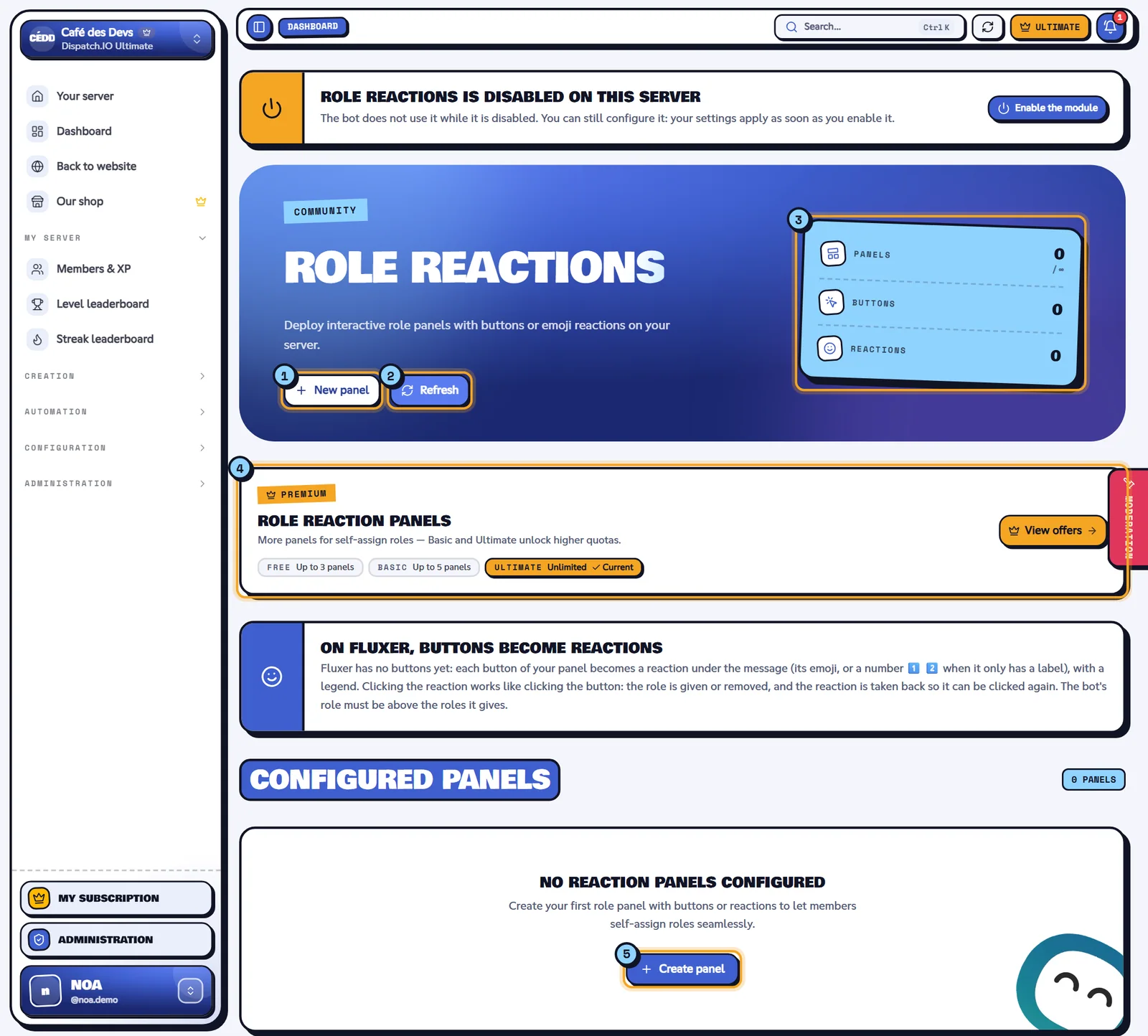
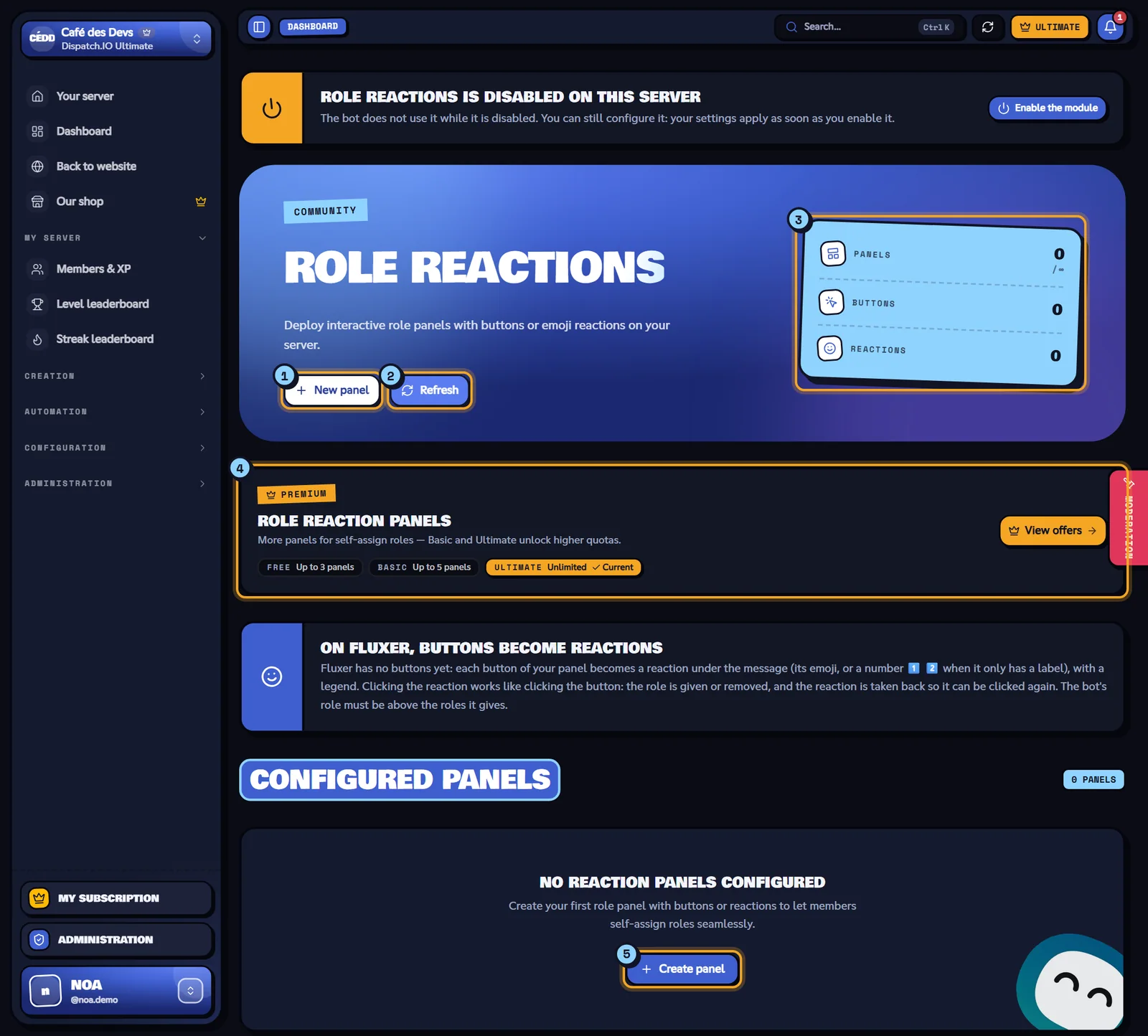
- New panel: starts the creation wizard.
- Refresh: reloads the list.
- Indicators: Panels (used out of your plan's maximum), Buttons and Reactions (number of triggers of each type).
- The Role reaction panels banner: number of panels per plan.
- Create panel: same as New panel, when the list is empty.
Each panel in the list is a card with its number, its title (read from Fluxer, or "Untitled panel"), the Buttons and Reactions badges, the channel and the number of triggers. Three actions:
- Edit: opens the panel in the editor (see Editing or deleting a panel).
- Open in Fluxer (icon): opens the message in Fluxer.
- Delete: removes every button and reaction of the panel.
Limits per plan
| Server plan | Panels |
|---|---|
| Free | 3 |
| Basic | 5 |
| Ultimate | Unlimited |
One panel is one Fluxer message. When the limit is reached, New panel is greyed out ("Limit reached: … panel(s) maximum."); editing an existing panel is still possible. The website doesn't limit the number of buttons or reactions per panel, but Fluxer does (see Good practices).
Step 1: choosing the format
The wizard shows its four steps at the top: Format, Destination, Triggers, Review. Move on with Next once the current step is complete; Cancel goes back to the list (the draft is lost).
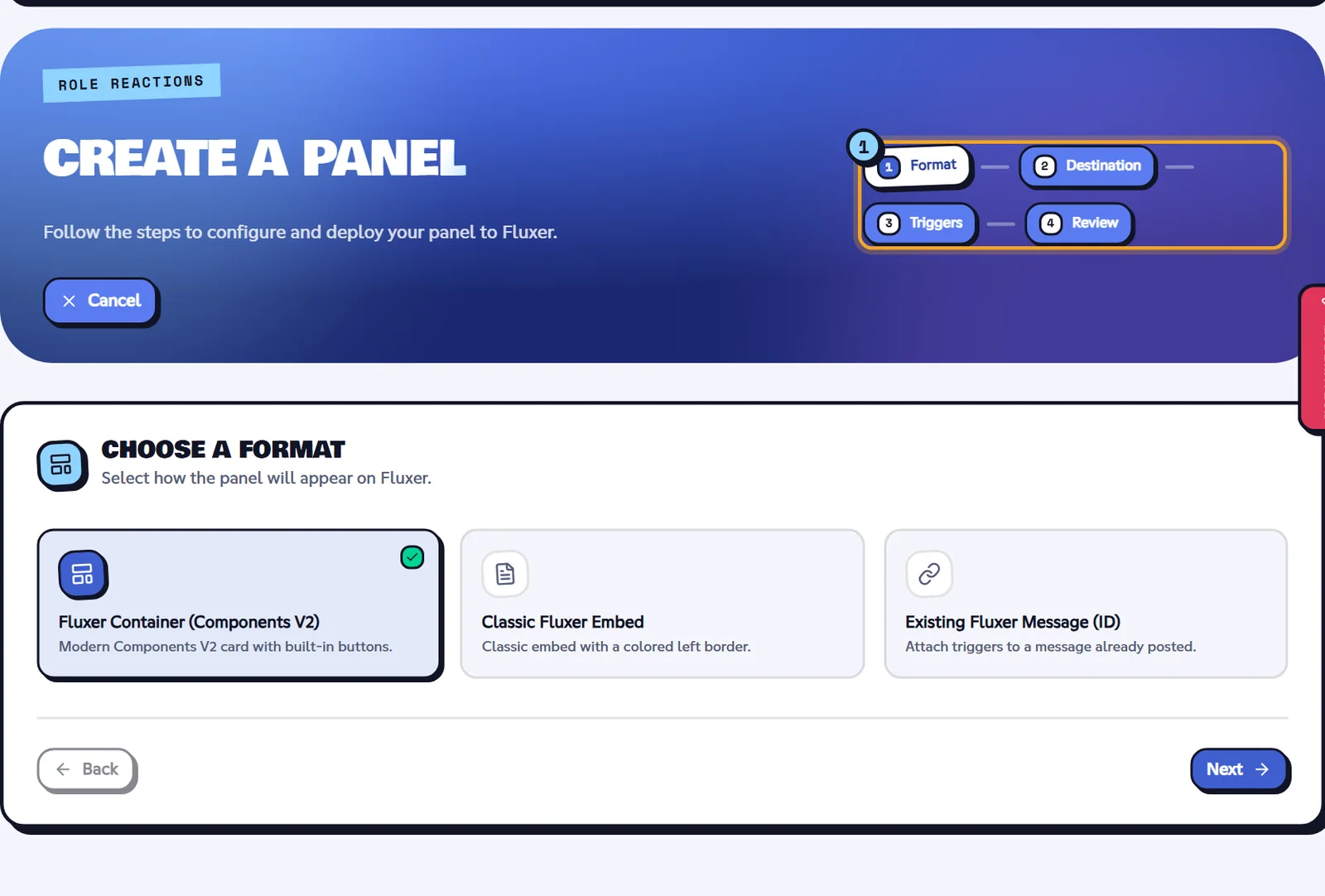
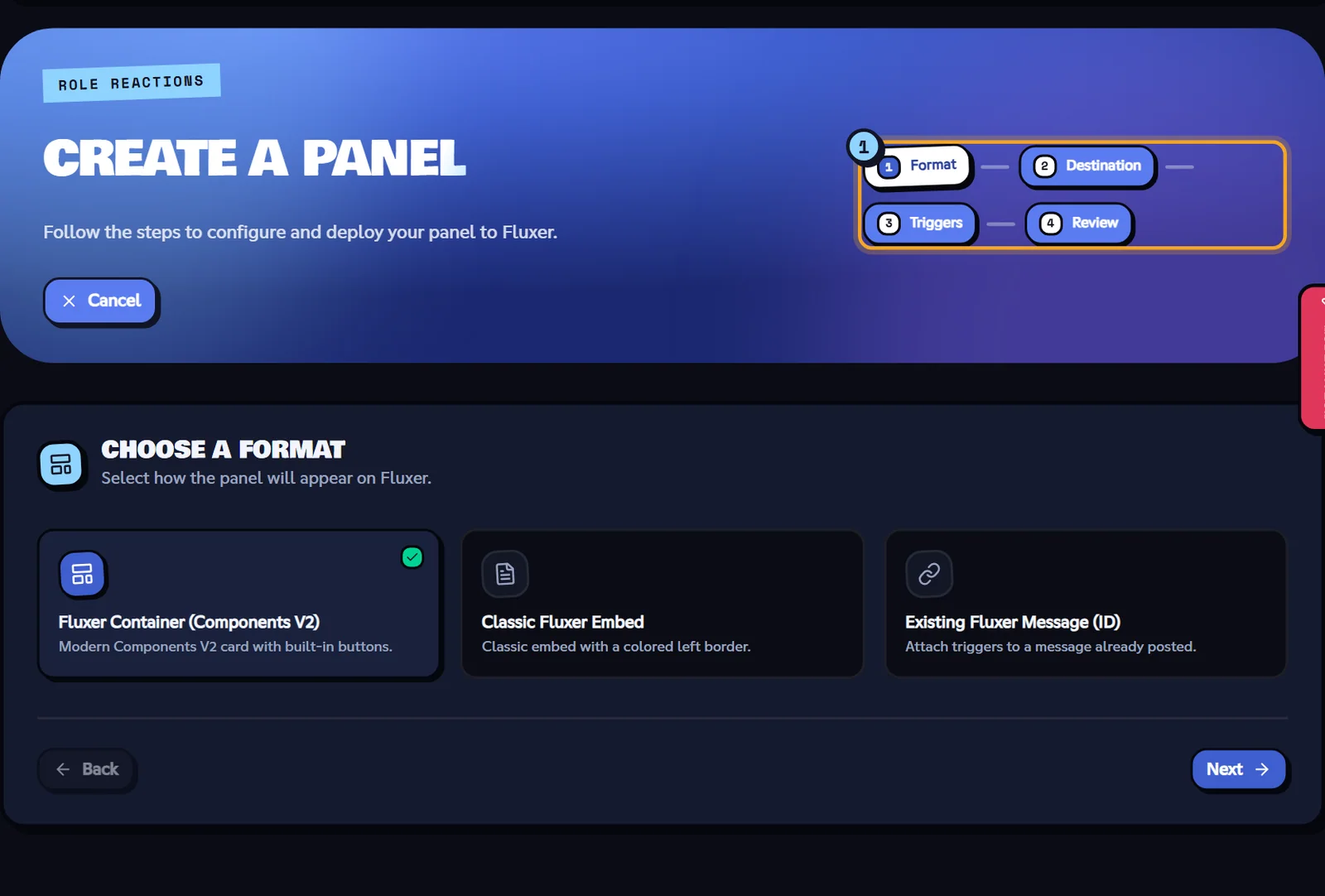
- The wizard steps.
- Fluxer Container (Components V2).
- Classic Fluxer Embed.
- Existing Fluxer Message (ID).
| Format | Result on Fluxer |
|---|---|
| Fluxer Container (Components V2) (default) | A modern card: title, description, optional image and buttons inside the card or below it. |
| Classic Fluxer Embed | An embed with a colored border; buttons sit below the embed. |
| Existing Fluxer Message (ID) | Adds triggers to a message already posted, without touching its content. |
On Fluxer
Fluxer doesn't display containers or buttons: whatever the format, the panel is posted as an embed, and its buttons become reactions listed in a legend box under the panel (a button without an emoji gets a number 1️⃣, 2️⃣…). The buttons' style and placement have no visible effect. See Reactions and triggers.
Note
With an existing message, reactions work on any message. Buttons, however, can only be added to a message sent by the bot (Fluxer doesn't let a bot edit someone else's message), and not to a container message.
Step 2: destination and content
- Fluxer Channel.
- Panel Title and Panel Description.
- Accent color.
- Panel image.
- The Fluxer preview, updated on every change.
| Field | What it does | Rules and default |
|---|---|---|
| Fluxer Channel | The channel where the panel is posted | Required ("Please select a target Fluxer channel.") |
| Fluxer Message ID (existing message) | The message to add triggers to. On Fluxer: turn on Developer Mode, right-click the message, Copy Message ID. | Required ("Please enter the target Fluxer message ID.") |
| Panel Title | Title at the top of the panel | Required. Default: "🎭 Rôles & Intérêts" |
| Panel Description | Text under the title, Fluxer Markdown accepted | Default: "Cliquez sur les boutons ci-dessous pour vous attribuer les rôles de votre choix." |
| Accent color | Color of the embed border or card | Picker, hex code or swatch. Default #5865F2 (Blurple) |
| Panel image | Image in the panel | Optional: upload (PNG, JPG, WEBP, GIF, 5 MB max) or HTTPS link |
Default texts are in French: replace them if your server speaks English.
Step 3: triggers
A trigger is a button or a reaction of the panel. Click Add trigger, then set it up in Configure trigger #…. The list shows Ready or Incomplete for each one; the bin deletes it.
- The trigger list and Add trigger.
- The trigger's sub-steps.
- The fields of the current sub-step.
- The panel preview with its buttons.
Each trigger is set up in sub-steps depending on its type:
| Type | Sub-steps |
|---|---|
| Role Button(s) (default) | Type → Appearance → Roles → Reply |
| Message Button | Type → Appearance → Message |
| Emoji Reaction | Type → Emoji → Roles |
- Appearance (buttons): Button Label, with the Server emojis grid to add one of your server's emojis; Fluxer button style: Blurple Blue, Fluxer Gray, Success Green or Alert Red; for a container, Button Position: Inside Container or Below Container (ActionRow). A label made of a single emoji becomes the button icon.
- Emoji (reactions): Reaction emoji, a Unicode emoji (
👍) or a server emoji. - Roles: Assigned Role(s), one or more roles (integration-managed roles and @everyone aren't offered).
- Reply (role button): Message when the role is added (default "Tu as reçu {roles} !") and Message when the role is removed ("Tu as perdu {roles}.").
{roles}is replaced with the role mentions; Insert '{roles}' adds it to the text. The defaults are in French: translate them if needed. - Message (message button): Response Message, sent privately to the member who clicks (always ephemeral, only they can see it).
Finish with Done. A trigger is ready when it has a label or an emoji, plus roles (or a message for a message button).
What each type does for the member
- Role Button(s): one click gives the roles; another click removes them. The member gets the reply privately.
- Message Button: one click shows the response message, privately.
- Emoji Reaction: reacting gives the roles, removing the reaction removes them.
Step 4: review and deployment
The Review step sums up the Format, the Channel, the Title (or message ID) and the trigger list. Click Deploy to Fluxer.
- The website checks the draft first: "Add at least one trigger before deploying." or "Trigger #… (…) is incomplete." takes you back to step 3.
- Then: "Role reaction panel deployed successfully!", and the list reloads for a few seconds until the panel shows up.
Warning
The success message shows as soon as the request leaves for the bot. If the panel doesn't appear in the list after a few seconds, the bot couldn't post it: check that it can view the channel, write in it, add reactions, and that its role is above the roles to give. Then click Refresh.
Editing or deleting a panel
Editing
Edit opens Edit panel: every section on a single page, with the content read from Fluxer. The channel and the message are locked ("This panel will update this existing Fluxer message."); you can change the title, description, color, image and triggers. Click Update on Fluxer: "Panel updated on Fluxer successfully!".
On each update, the bot replaces every trigger of the message with those of the editor.
- "Could not read Fluxer content: defaults used, please check title and description.": the website couldn't read the message; check the fields before updating.
- "This Fluxer message no longer exists — the orphaned panel was removed from the list.": the message was deleted on Fluxer.
Deleting
Delete removes every button and reaction of the panel right away, without confirmation: "The panel was removed from Fluxer.". The message itself (title, description) stays on Fluxer: delete it by hand if needed.
Orphaned panels
If a panel's message was deleted on Fluxer, the website removes the panel from the list on the next load: "… orphaned panel(s) cleaned (Fluxer message not found).".
Good practices
- One label or emoji per trigger: two triggers of the same panel must not share the same label or emoji, otherwise deployment fails.
- Fluxer limits: 5 buttons per row (the bot builds rows by itself), 20 different reactions per message, 80 characters per button label.
- Put the bot's role above the roles it hands out in the Fluxer server settings.
- For a server emoji created recently, click Sync Fluxer Data in the site header to see it in the grid.
Related pages
- Reactions and triggers: the panel from the member's side.
- Word reactions: automatic reactions to words.
- Premium plans and limits: number of panels per plan.
- Permissions and roles: bot permissions.