
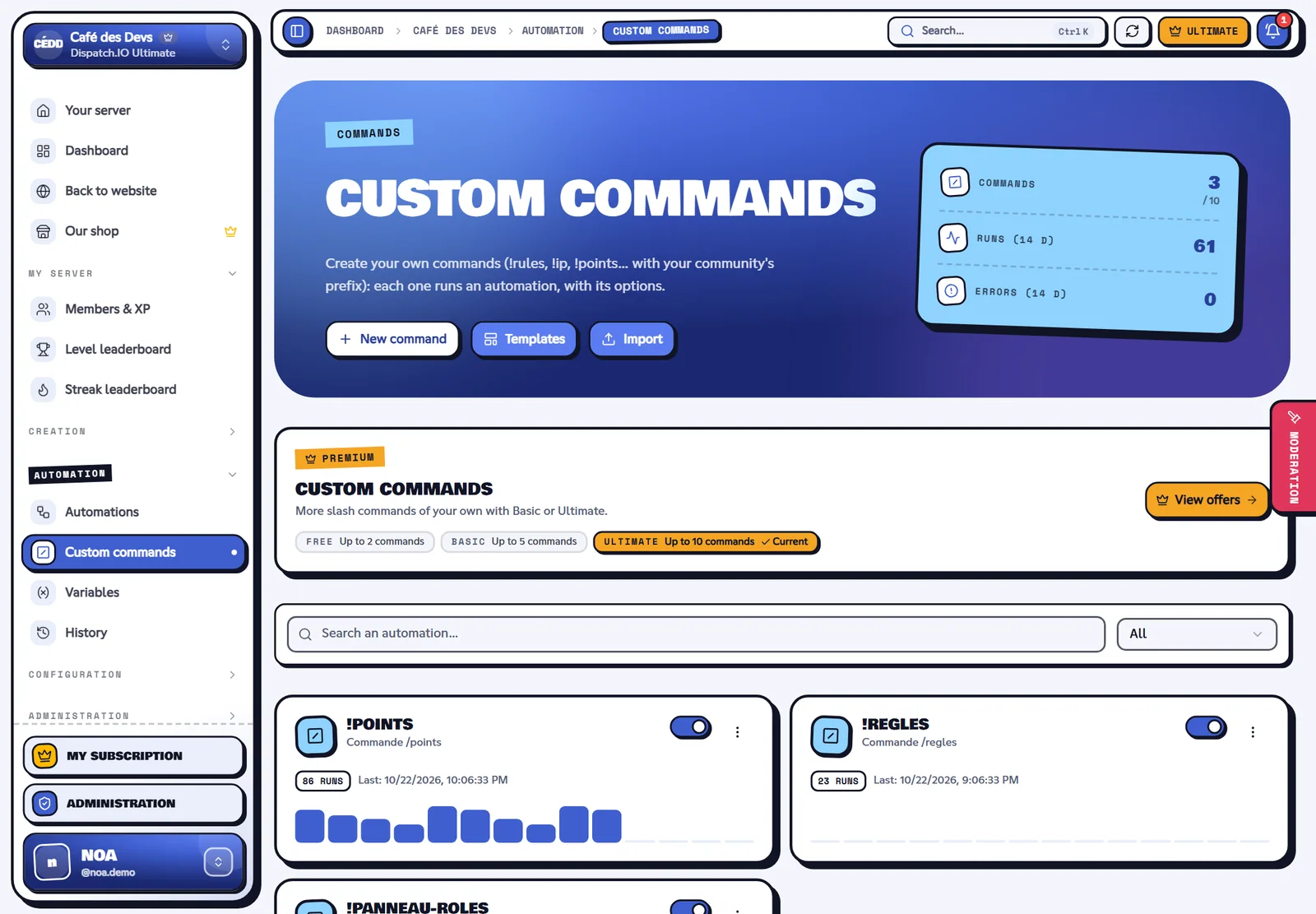
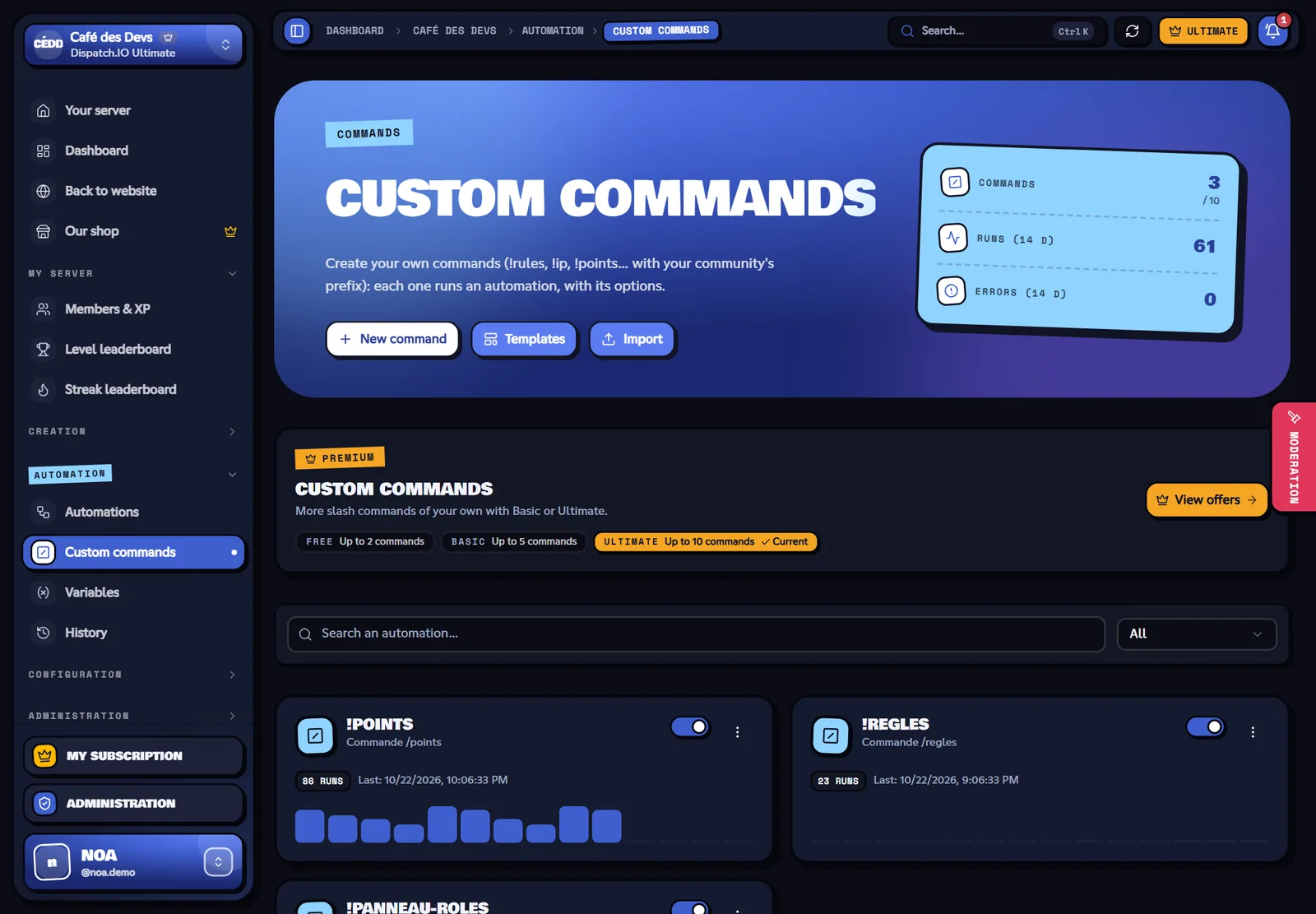
A custom command is an automation whose trigger is Custom command: when a member types the command with the community's prefix (!rules), the bot runs the diagram. It works like Dispatch.IO's commands, but only in your community.
Creating a command
- Automation menu › Custom commands › New command (or a template like
!rules). - In the trigger, fill in:
| Field | Rules |
|---|---|
| Command name | Lowercase, no space: letters, digits, - and _, 32 characters. A Dispatch.IO command with the same name (!rank, !warn…) always wins over yours: pick a free name. |
| Description | Shown under the usage when an option is missing (100 characters). |
| Options | Up to 10 options the member types after the name (see below). |
| Who can use it | Everyone, or only members with a permission (manage messages, time out, manage roles, manage community, administrators). Others get "You need the … permission" for 5 seconds. |
| Replies visible only to the member | The bot's replies (Reply actions) go to the member by direct message, and their command leaves the channel after 5 seconds. |
- Add actions: most often a Reply action.
- Save: the command works right away, there is nothing to register on Fluxer.
Options
The member types the options in order, separated by spaces: !give-points @Alex 50. A multi-word text goes between quotes ("well played"), except for the last text option, which takes the rest of the message. A missing or invalid option shows the usage (!give-points <member> <amount>) for 5 seconds.
| Type | What the member types | In a text |
|---|---|---|
| Text | Free text | {option.name}: the text |
| Integer, Number | A number (12, 3.5) | {option.name}: the number |
| Yes / no | yes, no, true, false, on, off, 1, 0 | {option.name}: true or false |
| Member | A mention or an ID | {option.name}: their mention; {option.name.id}: their ID |
| Channel | A channel mention or an ID | {option.name}: its mention |
| Role | A role mention or an ID | {option.name}: its mention |
A Member option can also be the actions' target: in an action's Target member field (role, DM, sanction, variable…), pick "The command's name option". Required options come before the others.
Example: a !give-points <member> <amount> command reserved to moderators, with an Add to a variable action (variable points, amount {option.amount}, target member: the member option) then Reply "✅ {option.amount} points given to {option.member}".
Replying to the command
- A Reply action posts its answer as a reply to the command's message. With replies visible only to the member, it goes by direct message (or stays 5 seconds in the channel if their DMs are closed).
- To post a message elsewhere, use Send a message.
- If the automation is on cooldown or fails, the member is warned by a temporary reply.
The other actions (send a message in a channel, give a role…) work normally; the "trigger channel" is the channel where the command was typed.
Limits
- 2 commands on Free, 5 on Basic, 10 on Ultimate (quota separate from the automations').
- A command that is turned off, deleted or over quota no longer answers: the member's message stays a normal message.